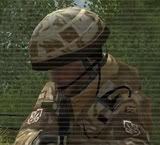
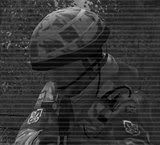
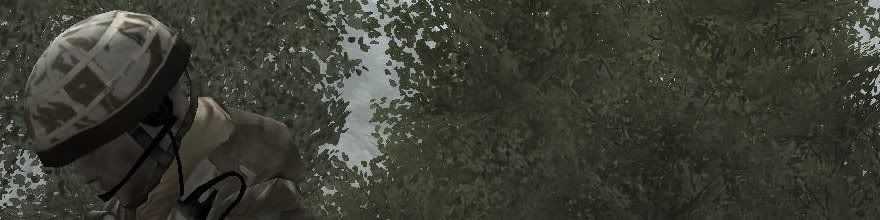
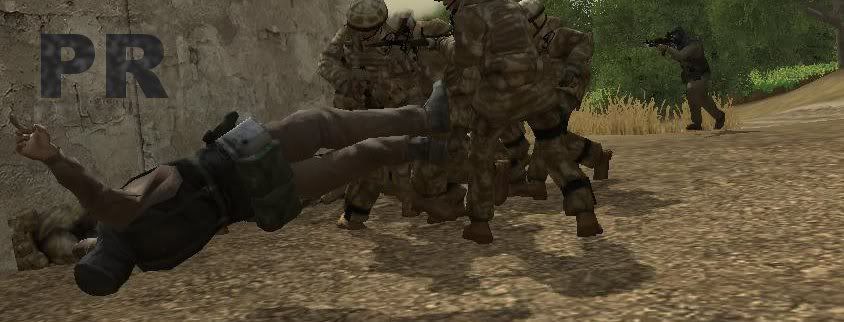
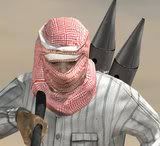
Very nice, but IMHO the soldier should be in colour as well, great effect though.
Couple from me, never done this before because I only just got the coop version of prbot
Critique welcome, like I said this is my first time so I would greatly appreciate knowing how I could do better.
Re: Picture Editing
Posted: 2010-10-09 17:18
by MasterGypsy
I have a question about some picture editing. How do you get part of the image to come off a rectangle base. Like how some people have in their signatures?
Re: Picture Editing
Posted: 2010-10-10 21:16
by dtacs
MasterGypsy wrote:I have a question about some picture editing. How do you get part of the image to come off a rectangle base. Like how some people have in their signatures?
Do you mean having a big screenshot and then getting out the part you want? Use the crop tool in Photoshop, you basically draw a big rectangle/square over the picture and press crop, and it will delete everything outside the square.
Re: Picture Editing
Posted: 2010-10-10 21:39
by dtacs
hobbnob wrote:Very nice, but IMHO the soldier should be in colour as well, great effect though.
Couple from me, never done this before because I only just got the coop version of prbot
Critique welcome, like I said this is my first time so I would greatly appreciate knowing how I could do better.
I don't mind the top one, you could take the screenshot to show a little more scenery of Lashkar rather than just leaves, and if you're going for scanlines try this guide here:
And for the one with all the Brits stabbing the Taliban guy (and your current sig for that matter) try some different, more appropriate fronts from dafont.
Re: Picture Editing
Posted: 2010-10-10 21:48
by DevilDog812
dtacs wrote:Do you mean having a big screenshot and then getting out the part you want? Use the crop tool in Photoshop, you basically draw a big rectangle/square over the picture and press crop, and it will delete everything outside the square.
i believe he means popout sigs
like this?
photoshop is preferred since it it easier to do with multiple layers.
1. get photo
2. select rectangular portion for base and copy as new layer
3. go back to original picture and select object you want "popping out" and copy/paste as new layer
4. make sure the popout portion is overtop of the bottom portion
5. stroke (make a border) around rectangular portion
6. add shadows as needed (drop shadow)
7. SAVE AS A .PNG WITH ALPHA CHANNELS!!!
8. ?????
9. Profit
Re: Picture Editing
Posted: 2010-10-14 18:42
by Tim270
Re: Picture Editing
Posted: 2010-10-15 02:12
by dtacs
Nice and simple, I like it.
You should try one in PR with Huey's or Chinooks or something.


 Second attempt at a universal camouflage pattern in a woodland environment.
 First attempt at a universal camouflage pattern in a desert environment.
 First attempt at a desert camouflage pattern.
 First attempt at a woodland camouflage pattern.
 Second attempt at a woodland camouflage pattern.
 Third attempt at a woodland camouflage pattern.