Page 1 of 2
Error 1324: The selected display mode is not supported.
Posted: 2013-08-12 01:35
by seamaster1989
I can't start the game: error:
1324: The selected display mode is not supported. Please update the display mode for your profile in the "Options" menu and try again.
and when i do that it resets and gives me the same answer.
wth should i do?
Re: Error 1324: The selected display mode is not supported.
Posted: 2013-08-12 16:04
by LITOralis.nMd
Start PRLauncher
CLick OPtions
Click Reset Profiles Blue Button on bottom left.
CLick Yes to confirm.
Instead of importing your vanilla BF2 profile, retrieve your profile using the GameSpy profile retrieval option.
Re: Error 1324: The selected display mode is not supported.
Posted: 2013-08-12 16:19
by Jackson[501stIR]
seamaster1989 wrote:I can't start the game: error:
1324: The selected display mode is not supported. Please update the display mode for your profile in the "Options" menu and try again.
and when i do that it resets and gives me the same answer.
wth should i do?
This just happened to me yesterday too, I just went to video and clicked reset profile settings...Everything was fine from there on out
Re: Error 1324: The selected display mode is not supported.
Posted: 2013-10-29 22:40
by LAWolves
It happened to me too but when I go in options to change the display mode the drop down window is blank, like completely blank.
What's wrong?
Re: Error 1324: The selected display mode is not supported.
Posted: 2013-10-29 23:08
by LITOralis.nMd
What's wrong?
Your vanilla BF2 profile did not transfer over correctly.
Start PRLauncher
Click Options
Click Reset Profiles Blue Button on bottom left.
Click Yes to confirm.
Instead of importing your vanilla BF2 profile, retrieve your profile using the GameSpy profile retrieval option.
Re: Error 1324: The selected display mode is not supported.
Posted: 2013-10-30 00:45
by LAWolves
[R-COM]LITOralis.nMd wrote:Your vanilla BF2 profile did not transfer over correctly.
Start PRLauncher
Click Options
Click Reset Profiles Blue Button on bottom left.
Click Yes to confirm.
Instead of importing your vanilla BF2 profile, retrieve your profile using the GameSpy profile retrieval option.
I would not have posted if that had worked. Do you have any other explanation?
I don't mean to sound harsh but I don't like to be considered stupid either, I know you have to deal with people who just post their problems without reading the full thread but I did and it did not work at all.
BTW thanks for solving the updating problem which seems to be solved now.
Re: Error 1324: The selected display mode is not supported.
Posted: 2013-10-30 00:55
by LITOralis.nMd
We get all types around here,
sorry to get pedantic,
what OS are you using?
1. Try running PRLauncher as admin
2. Try running PRLauncher with winXP SP3 compatibility mode.
3. Go to Documents\ProjectReality\Profiles\Default
right click video.con, properties, check to make sure it is not set to Read Only.
open video.con in Notepad
edit this line:
VideoSettings.setResolution 1920x1080@60Hz to the appropriate setting for your GPU and monitor.
Save any change to the video.con file.
Each profile you create on your PC will create a new directory, 0001 , 0002, etc.
4. Go to Documents\ProjectReality\Profiles\0001
right click video.con, properties, check to make sure it is not set to Read Only.
open video.con in Notepad
edit this line:
VideoSettings.setResolution 1920x1080@60Hz to the appropriate setting for your GPU and monitor.
Save any change to the video.con file.
Also, run vanilla BF2 once, and see if the video resolution options are also not working in vanilla BF2.
Re: Error 1324: The selected display mode is not supported.
Posted: 2013-10-30 02:05
by LAWolves

This is how it looks like and the way it looks when I press it.
My OS is Windows 8 so I cannot run the XP compatibility mode.
I tried what you said to no avail:
-It is not read-only
-I set the correct resolution (1600x900) on all 3 files (the one in the account from BF2, the brand new one I made to see if that was the problem and the default folder one).
It goes without saying I'm very thankful for the prompt response and help, I know you can solve it.
Re: Error 1324: The selected display mode is not supported.
Posted: 2013-10-30 02:29
by LITOralis.nMd
You are the first person to report this particular error.
Did you upgrade from windows 8 to windows 8.1 ?
Are you running on a notebook with switchable graphics?
Could you post your system specs,
PRlauncher->Support->Copy to Clipboard
paste it in this thread.
Re: Error 1324: The selected display mode is not supported.
Posted: 2013-10-30 02:37
by LAWolves
[R-COM]LITOralis.nMd wrote:You are the first person to report this particular error.
Did you upgrade from windows 8 to windows 8.1 ?
Are you running on a notebook with switchable graphics?
Could you post your system specs,
PRlauncher->Support->Copy to Clipboard
paste it in this thread.
Code: Select all
System Information
------------------
  Operating System: Microsoft Windows 8 (6.2.9200)
      Architecture: 64-bit
          Language: English (United States)
       Motherboard: Acer VA70_HC
         Processor: Intel(R) Core(TM) i7-3632QM CPU @ 2.20GHz (Physical: 4, Logical: 8)
            Memory: 12.00 GB
      DIMM Modules: DIMM0: 8.00 GB @ 1600 MHz
                    DIMM1: 4.00 GB @ 1600 MHz
         Page File: 12.00 GB
    .NET Framework: 4.5

Display Information
-------------------
 Display Device(s):
   Display Mode(s):
    Driver Version: 9.17.10.2867
    Display Memory: 2.13 GB
     Multisampling: 2, 4, 8
               DPI: 96 (100%)

Audio Information
-----------------
  Primary Playback: Speakers (Realtek High Definiti
 Primary Recording: Microphone (Realtek High Defini
               EAX: True
           EAX 1.0: False
           EAX 2.0: True
           EAX 3.0: False
           EAX 4.0: False
           EAX 5.0: False
             X-RAM: False

Disk Information
----------------
      Install Path: D:\SteamLibrary\steamapps\common\Battlefield 2
                    Free: 109.37 GB, Total: 931.51 GB, NTFS
          Mod Path: D:\SteamLibrary\steamapps\common\Battlefield 2\mods\pr
                    Free: 109.37 GB, Total: 931.51 GB, NTFS
     Profiles Path: C:\Users\Cesare\Documents\ProjectReality\Profiles
                    Free: 20.47 GB, Total: 118.43 GB, NTFS
    Update DL Path: C:\Users\Cesare\AppData\Local\Project Reality\Project Reality BF2\Downloads
                    Free: 20.47 GB, Total: 118.43 GB, NTFS
   Update Log Path: C:\Users\Cesare\AppData\Local\Project Reality\Project Reality BF2\UpdateLogs
                    Free: 20.47 GB, Total: 118.43 GB, NTFS

Game Information
----------------
      CD Key Valid: True
    Installed Mods: bf2, pr, xpack
       Current Mod: pr
       BF2 Version: BF2 1.5
        PR Version: 1.0.36.0
          Language: english
   Debug Available: False
     Large Address: True
Supported Hardware: None

Profile Information
-------------------
      Profile 0001: LAWolves
              Type: Online
        View Intro: True
        Fullscreen: False
      Display Mode:
Display Mode Valid: False
   Graphics Scheme: Medium
     Multisampling: 2x
             VSync: False
   Terrain Quality: Low
   Effects Quality: Medium
  Geometry Quality: Low
   Texture Quality: Medium
  Lighting Quality: Low
   Dynamic Shadows: Medium
    Dynamic Lights: Medium
 Texture Filtering: Medium
    Audio Provider: Software
    Provider Valid: True
     Audio Quality: Medium
               EAX: True

      Profile 0002: L4Wolves
              Type: Online
        View Intro: True
        Fullscreen: True
      Display Mode: 1600x900@60Hz
Display Mode Valid: False
   Graphics Scheme: Medium
     Multisampling: Off
             VSync: False
   Terrain Quality: Low
   Effects Quality: Medium
  Geometry Quality: Low
   Texture Quality: Medium
  Lighting Quality: Low
   Dynamic Shadows: Medium
    Dynamic Lights: Medium
 Texture Filtering: Medium
    Audio Provider: Software
    Provider Valid: True
     Audio Quality: Medium
               EAX: True
No I haven't upgraded it, I did not even know of the upgrade.
I run on a notebook but don't know what you mean for switchable graphics.
Re: Error 1324: The selected display mode is not supported.
Posted: 2013-10-30 03:07
by LITOralis.nMd
Display Information
-------------------
Display Device(s):
Display Mode(s):
That is bad,
So, do you have a discrete GPU or an iGPU, or do you have both?
Better yet, tell me the exact Acer notebook model, cause I'll just google that info.
The PRlauncher can't recognize your GPU, so it can't recognize your resolution options.
Re: Error 1324: The selected display mode is not supported.
Posted: 2013-10-30 03:34
by LAWolves
It is a Acer Aspire V3-771G
It says it has a GT 730M
P.S.
I'm downloading the drivers just to make sure they're up to date.
Re: Error 1324: The selected display mode is not supported.
Posted: 2013-10-30 07:36
by LITOralis.nMd
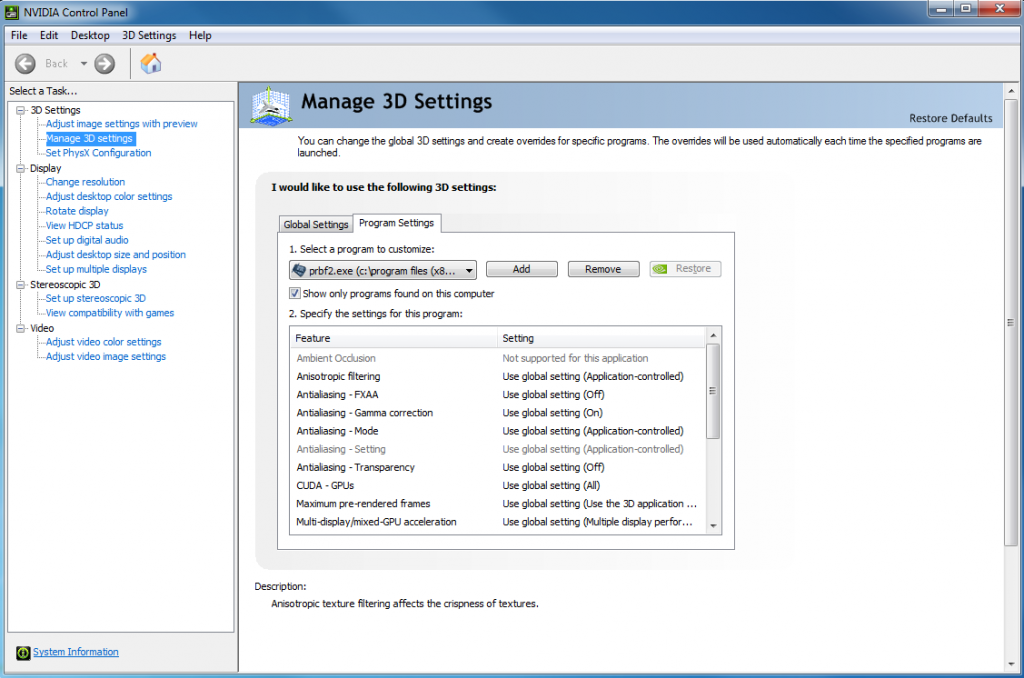
You need to use
nvidia control panel _>program settings-> add
to add the PRBF2.exe file to be forced to use the discrete GPU,
Here is an example of forcing the InterVideo WinDVD program to use the discrete GPU... follow the same steps but add PRBF2.exe
Procedure to add an application to NVIDIA Optimus Technology?s dedicated video 3D settings - ThinkPad.
PRBF2.exe is located in same directory as BF2.exe
Re: Error 1324: The selected display mode is not supported.
Posted: 2013-10-30 21:52
by LAWolves
I've done this and it's working now. Thank you very much.
You're awesome, see you on the field of battle.
Re: Error 1324: The selected display mode is not supported.
Posted: 2013-10-31 13:36
by LITOralis.nMd
Procedure to add the applications PRLauncher.exe, PRBF2.exe , PRMumble.exe and BF2.exe to NVIDIA Optimus Technology?s dedicated video 3D settings
?
Affected systems
Any Notebook or All-in-one PC with NVIDIA Optimus technology
Information
NVIDIA Optimus Technology automatically determines if a launched application requires high end NVIDIA graphics capabilities or will run satisfactorily in Intel Video mode. This list is updated automatically by the NVIDIA Control Panel.If you have an application that does not run well if it switches to NVIDIA video or experiences video crashes while in NVIDIA mode, then the application may run better with Intel Video mode. The below procedure details how to manually add an application to the NVIDIA 3D Program settings and assign a dedicated video card to the application. This process has 2 features. It allows for an application to run in Intel video mode only if the application switches to NVIDIA graphics, or it will force an application to use a specific video subsystem.
- Launch the NVIDIA Control panel by right clicking the desktop and selectingNVIDIA Control Panel

Select Manage 3D Settings from top left pane.Select Program Settings from right pane.

- use the menu pull down in option 1 to locate the PR applications.
Click Add to add the application to the pull down menu list.
NOTE: If the application is NOT listed, then remove the check mark by Show only Programs found on this computer and then use the browse function to locate the application?s installation folder and executable. Click Add to add the application to the pull down menu list.
Code: Select all
[b]Default location in Windows Vista/7/8/2008/2012 X64 for Origin installations:[/b]

C:\Program Files (x86)\Origin Games\Battlefield 2 Complete Collection\mods\pr\bin\PRLauncher.exe

C:\Program Files (x86)\Origin Games\Battlefield 2 Complete Collection\mods\pr\bin\PRMumble\PRMumble.exe

C:\Program Files (x86)\Origin Games\Battlefield 2 Complete Collection\PRBF2.exe

[b]Default location in Windows XP/Vista/7/8 32 Bit X86 for Origin installations:[/b]

C:\Program Files\Origin Games\Battlefield 2 Complete Collection\mods\pr\bin\PRLauncher.exe

C:\Program Files\Origin Games\Battlefield 2 Complete Collection\mods\pr\bin\PRMumble\PRMumble.exe

C:\Program Files\Origin Games\Battlefield 2 Complete Collection\PRBF2.exe

[b]Default location in Windows Vista/7/8/2008/2012 X64 for Steam installations:[/b]

C:\Program Files (x86)\Steam\steamapps\common\battlefield 2\mods\pr\bin\PRLauncher.exe

C:\Program Files (x86)\Steam\steamapps\common\battlefield 2\mods\pr\bin\PRMumble\PRMumble.exe

C:\Program Files (x86)\Steam\steamapps\common\battlefield 2\PRBF2.exe

[b]Default location in Windows XP/Vista/7/8/2008/2012 for Steam installations:[/b]

C:\Program Files\Steam\steamapps\common\battlefield 2\mods\pr\bin\PRLauncher.exe

C:\Program Files\Steam\steamapps\common\battlefield 2\mods\pr\bin\PRMumble\PRMumble.exe

C:\Program Files\Steam\steamapps\common\battlefield 2\PRBF2.exe
- Once the application or executable has been located and added, then use option 2 to select the specific video subsystem that you want assigned to the application. Integrated video is Intel Video Mode and Discrete video is NVIDIA Video mode.
PRLauncher.exe, PRBF2.exe, PRMumble.exe and BF2.exe ALL MUST USE THE DISCRETE GPU.
DO NOT SELECT INTEGRATED!!
USE THE DISCRETE GPU FOR PR.
SELECT DISCRETE!! 
- At this point the launch PRLauncher and see if PRLauncher and PRBF2.exe application launches correctly and performs as expected.


Notes:Within the NVIDIA control panel there is an option to add a menu item to the Desktop Context Menu which will allow for any application to be run in Integrated or Discrete mode via the right click Contest menu. Add this functionality via the NVIDIA Control Panel. The second item in the list enables this function,while the last item in the list allows for a system tray notification balloon.This notification allows for quick visual clue as to which graphics adapter is enabled.

This action will results in the following menu choices for applications located via Start->All Programs Start Button.

Re: Error 1324: The selected display mode is not supported.
Posted: 2014-01-28 18:09
by Krapovitz
I have the same problem, but with windows 7.
Re: Error 1324: The selected display mode is not supported.
Posted: 2014-01-28 20:36
by LITOralis.nMd
Please post your system specs,
and please post the DXDIAG output, tutorial on how to use DXDIAG:
http://help.ea.com/en/article/how-to-ga ... formation/
Re: Error 1324: The selected display mode is not supported.
Posted: 2014-06-12 14:53
by TheRedDotO
Did you find the solution? I have the same pb now
Re: Error 1324: The selected display mode is not supported.
Posted: 2014-06-15 09:16
by Markoxx
I have the same problem in windows 7 aswell please help
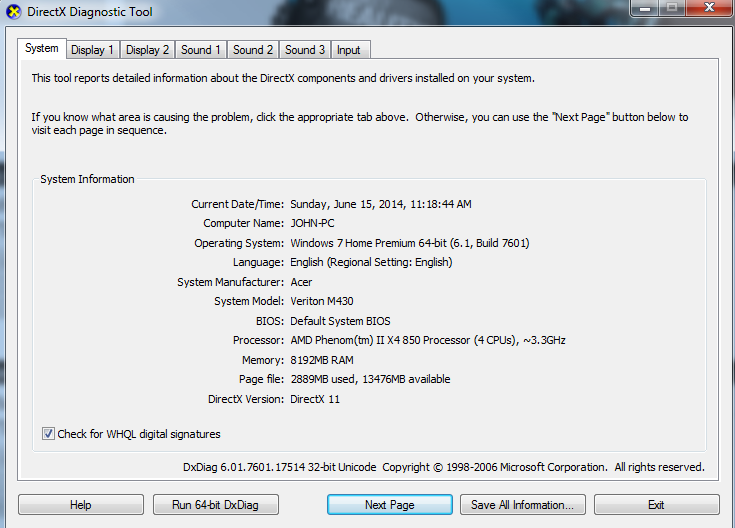
am i doing something wrong
Re: Error 1324: The selected display mode is not supported.
Posted: 2014-06-15 11:14
by Markoxx
Its working now, I disabled my comodo antivirus and all worked just fine

