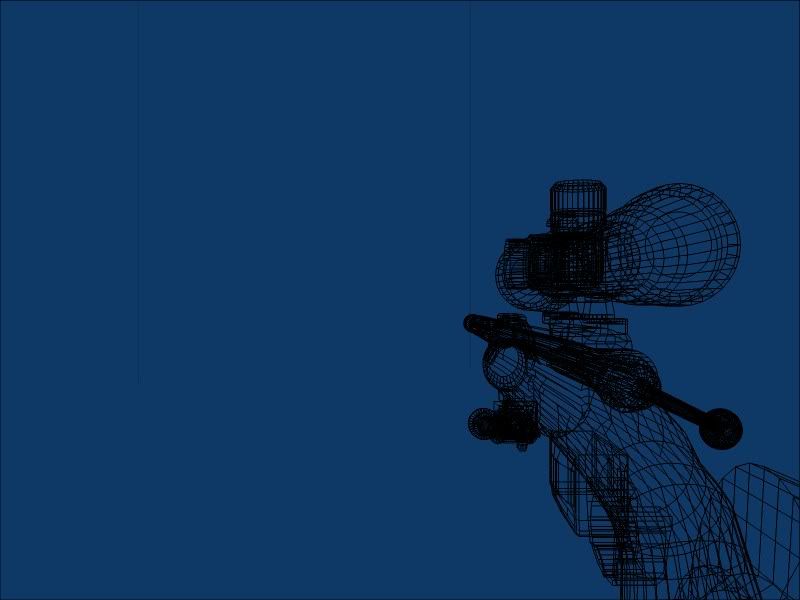
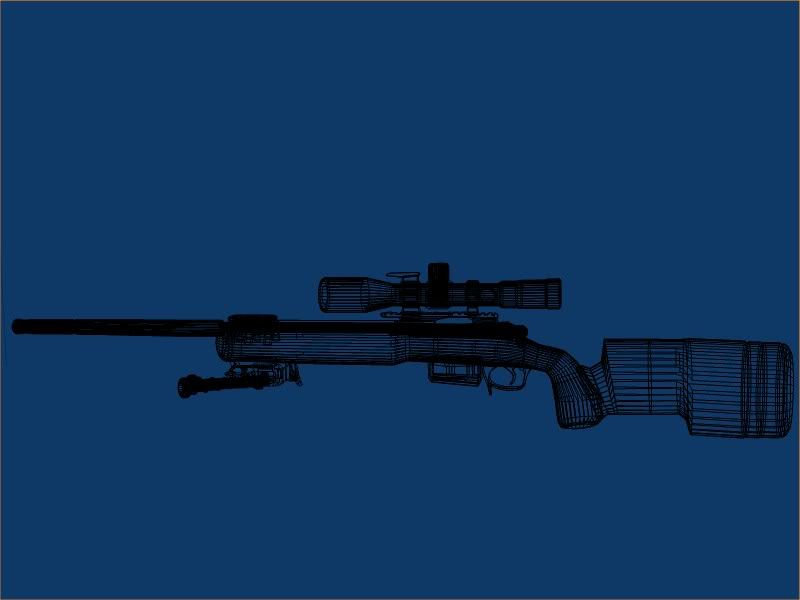
For a good wireframe, go into edit mode -> line/vertex select mode and then press the "OpenGL render active viewport" button, the button is on the same bar as the object mode at the end, it's next to the Camera Icon. If you can't find it press space and type in "OpenGL render". That gives a render of the viewport in Edit mode so we can see the topology.
Your model looks very high poly from the render you've given. The polycount in Blender is shown at the bar on the top, there is a label that looks something like "Ve:8 | Fa:6". 'Ve' is the vertex count, and 'Fa' is the face count. If you select your model object and go into edit mode then the label showns the number of vertices and faces for that object.
For comparison purposes, it's useful to triangulate when checking the Face count. 'Ctrl-T' to triangulate, then 'Ctrl-Z' undo it since I doubt you want to work in triangles.
To get the model to shade nicely you can use an edgesplit modifier + mark faces sharp.
Here's a tutorial for Blender 2.49. The tutorial will still work for Blender 2.57, but the buttons are in different places. This will give an impression of how the model might look in-game.